
PANSCOPE · CHEAP SCREEN EXTENDER
Unlock the ultrawide you already own.
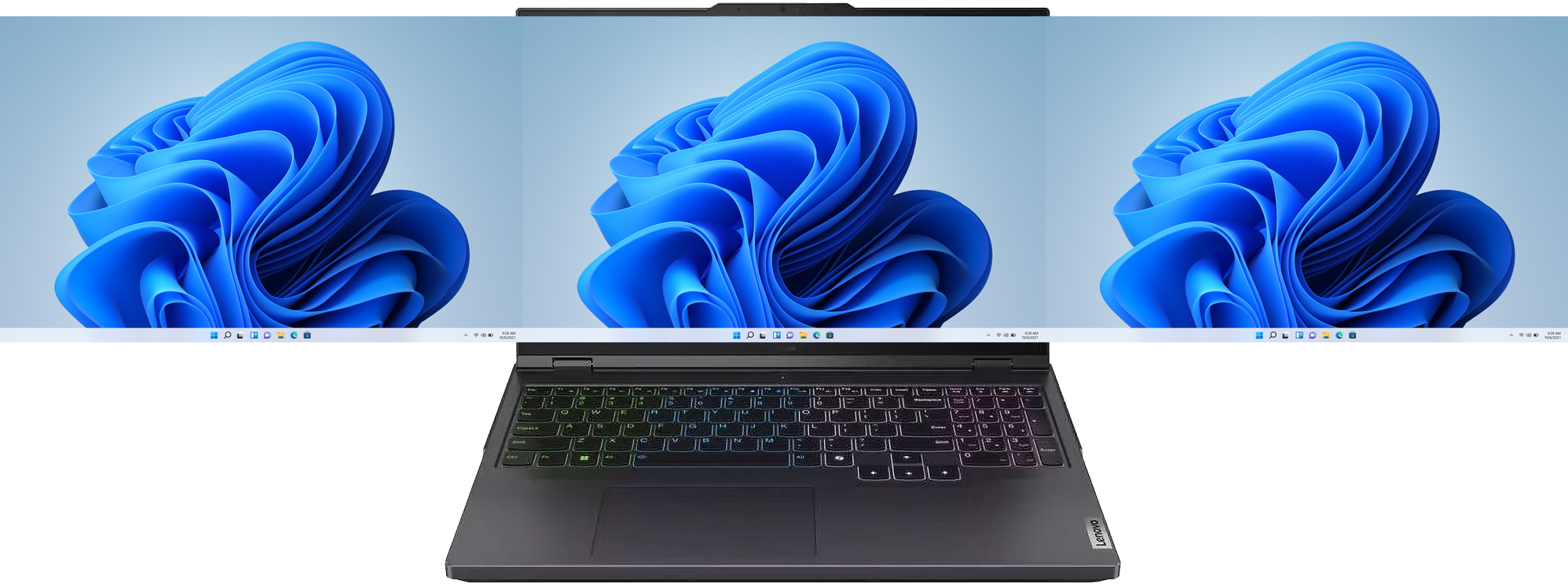
PanScope gives your Windows computer a pannable, multi-monitor workspace. Spread your windows across virtual screens and pan around a canvas far bigger than your screen. No extra hardware, no desk full of monitors, no cable clutter, no extra weight to carry around, minimized extra battery drain.
Windows 10 & 11 laptops and desktops, integrated or discrete graphics · one-time license
Built for all Windows 10 and 11 computers: budget computers, workstations, and everything in between.
Keeps your taskbar & desktop icons. Works with AMD, Intel, & NVIDIA Graphics. Sips resources.
One screen is never enough.
A second monitor means needing more desk space, money you’d rather not spend, and something you can’t take with you. So you end up alt-tabbing all day on a single laptop panel, losing your place every time.
So we put the extra screens in software.
PanScope creates real, extra monitors your computer can pan across. Windows treats them as genuine displays, so your taskbar, your snapping, and your apps all just work. It costs less than the cheapest monitor and weighs nothing.
Click-Drag the image above to see how it works. PanScope works without clicking/dragging. It's like magic.
PANSCOPE FEATURES
A monitor wall, in software
Everything a multi-monitor desk gives you - the room, the snapping, the flow - without the hardware, the cost, or the cable clutter.

Extra screens, zero hardware
Create up to four virtual monitors beside your computer screen. Your taskbar, your windows, your whole workflow - spread out like you’re sitting at a multi-monitor desk.

A canvas bigger than your panel
Your screens live on one continuous canvas. Move toward an edge and the view glides - the pointer stays locked to your hand, so it feels like one enormous display.
Snap windows anywhere
WinKey + arrow keys function on every screen - halves, quarters, and straight across screen borders. We rebuilt the Windows snapping that normally breaks on virtual displays.

Works on Windows 10 & 11
Integrated Intel, AMD or NVIDIA graphics, or a laptop with a mix of integrated and discrete GPU - PanScope sorts out the plumbing and just works.

Cheaper than a monitor
A one-time lifetime license costs less than the cheapest second screen, and it’s the only "monitor" you’ll never have to pack, plug in, or dust.

Truly portable
Your extra screens travel inside your laptop. Coffee shop, plane tray, hotel desk - a full multi-monitor setup, nothing extra in your bag.
THREE STEPS
Get up and running fast

1 · Install & launch
Download and run PanScope. It sets up the virtual display driver for you -no digging through Windows display settings.

2 · "Turn on" your screens
Choose how many extra screens and where they sit. PanScope creates them and drops you straight into the view.

3 · Work bigger
Pan across your canvas, and go back to your plain laptop screen anytime with a hotkey combination. Not that you'll want to.
MADE FOR
People who need more room to work

Content creators
Timeline, preview, and asset panels open at once - no monitor arm required.

Web designers
Code, live preview, and reference material side by side by side.
Programmers
Editor, terminal, docs, and the running app, all spread out.

IT technicians
RDP sessions, consoles, and dashboards — on the road, on any laptop.

Multitaskers
Email, chat, docs, and research each on their own screen.
A CLOSER LOOK
Built to feel like real screens
The view moves with you
Slide toward an edge and your canvas glides under a pointer that never leaves your hand. It reads as one giant screen, not a cramped window you’re scrolling.
Snapping that actually works on virtual screens
WinKey + arrow tiles and walks windows across every screen - left half, right half, quarters, and straight across the border to the next display. It’s the native snap experience, rebuilt so it works where Windows’ own gives up.
Your laptop, whenever you want it back
One hotkey combination steps out to your ordinary desktop and back. Close PanScope and your screens tuck away - every window comes home to your laptop panel automatically.
PRICING
Less than the cheapest monitor
Try everything free for 14 days. Buy once, keep it -
no subscription, just like a real monitor.
Free Trial
Free
14 days, every feature, no card required.
✓ Full multi-screen mode
✓ Window snapping
✓ Every feature unlocked
PanScope 1-Year License
$20
1-year of program updates
✓ Everything in the trial
✓ 1-year of updates
✓ 5 License Transfers
PanScope Lifetime License
$50
one-time — yours to keep
✓ Everything in the trial
✓ No time limit
✓ Lifetime updates
FAQ
Questions, answered
Do I need a second monitor or any extra hardware?
No. That’s the whole point - PanScope creates the extra screens in software. All you need is your Windows laptop.
Which versions of Windows work?
Windows 10 and 11, on both Intel and AMD (x64). ARM64 coming soon.
Are the extra screens “real” to Windows?
Yes. Windows treats them as genuine displays, so your taskbar, window snapping, and applications behave exactly as they would with physical monitors.
I only have integrated graphics - will it work?
Yes. PanScope runs on single-GPU PCs and on hybrid machines with a discrete GPU alike.
Panning feels smoother on one screen, or a little laggy?
PanScope runs smoothest on a single GPU. On laptops with both an integrated and a discrete (gaming) GPU, switching everything onto the discrete GPU noticeably improves panning. Set your laptop to discrete / dGPU-only mode and reboot — look for the option in your laptop's control app:
- MSI — MSI Center → Advanced → GPU Switch → Discrete Graphics
- ASUS / ROG — Armoury Crate → GPU Mode → dGPU (Standalone/Ultimate)
- Lenovo / Legion — Legion Space → GPU Working Mode → dGPU (or BIOS → Hybrid Mode → Disabled)
- Razer — Synapse → Performance → GPU → Discrete
- Alienware / Dell — Command Center, or BIOS → Discrete / MUX
- HP / OMEN — OMEN Gaming Hub → GPU
- No app option? Reboot into BIOS and set Hybrid Mode / MUX to Discrete.
Note: dGPU-only mode uses more battery - switch back to Hybrid for everyday use if you have days you feel like you can live without PanScope.
PanScope system requirements
System Requirements
- OS: Windows 10 (64-bit, version 1903 or later) or Windows 11 - both Intel/AMD (x64), with an ARM64 version coming soon
- Processor: any modern 64-bit CPU
- Graphics: any GPU with Desktop Duplication support (essentially any GPU from the last ~10 years; integrated graphics are fine)
- Memory: 4 GB minimum, 8 GB recommended
- Storage: ~250 MB free
- .NET: you may be prompted to download and insteall the required runtime when installing the app
- Permissions: one-time administrator approval to install the virtual-display driver
- Display: works on a single computer screen - no external monitor or hardware required
What's the keyboard shortcut to disable it?
Press CTRL + ALT + J to enable/disable PanScope while it's running.
How does the free trial work?
Download and use every feature free for 14 days. When it ends, buy a license to keep going.
Can I transfer my license?
Yes, you can transfer the license 5 times. On the 5th license transfer, our activation server locks the license to the last computer it was transferred to.
What’s your refund policy?
We offer a 30-day money-back guarantee. If PanScope isn't right for you, just email us within 30 days of your purchase and we'll refund you in full - no hassle. You can also try every feature free for 14 days before you buy, so there's no risk either way.
How do I Uninstall PanScope?
To properly uninstall PanScope, first ensure PanScope has been quit using the Tray Icon's context (right-click) menu.
Select "Quit PanScope" from the context menu.
Go to your Windows Control Panel.
Add / Remove Programs
Find "PanScope" in the list and uninstall from there.
This will cleanly remove PanScope and disable the virtual screens so your mouse doesn't disappear when you move it to the edges of your screen.
If you did not uninstall PanScope properly, simply reinstall PanScope and follow the instructions above.
Give your computer more screens today.
Free for 14 days. Set up in a minute. Nothing to carry.